Indexing Your Books for GIAC Exam Preparation
GIAC exams are open book, so a good index saves minutes on every question. Six steps, from numbering chapters to a sorted, printed spreadsheet.

GIAC books lack section numbers, which you, as the ‘learner,’ should add if you want to index the books for better exam preparation. I actually loved the books that way since it allowed for more customization.
Indexing your books is crucial for GIAC exams, given that it’s an open-book exam (not an e-book; you cannot use your computer or the internet).
When I first learned about this, I felt very nervous and stressed out because I don’t usually index any of the books that I read. So, I didn’t know where to begin. However, it turned out to be a straightforward procedure in the end. In this blog, I’ll show you how I indexed my books and passed my GIAC exam with an ‘A’.
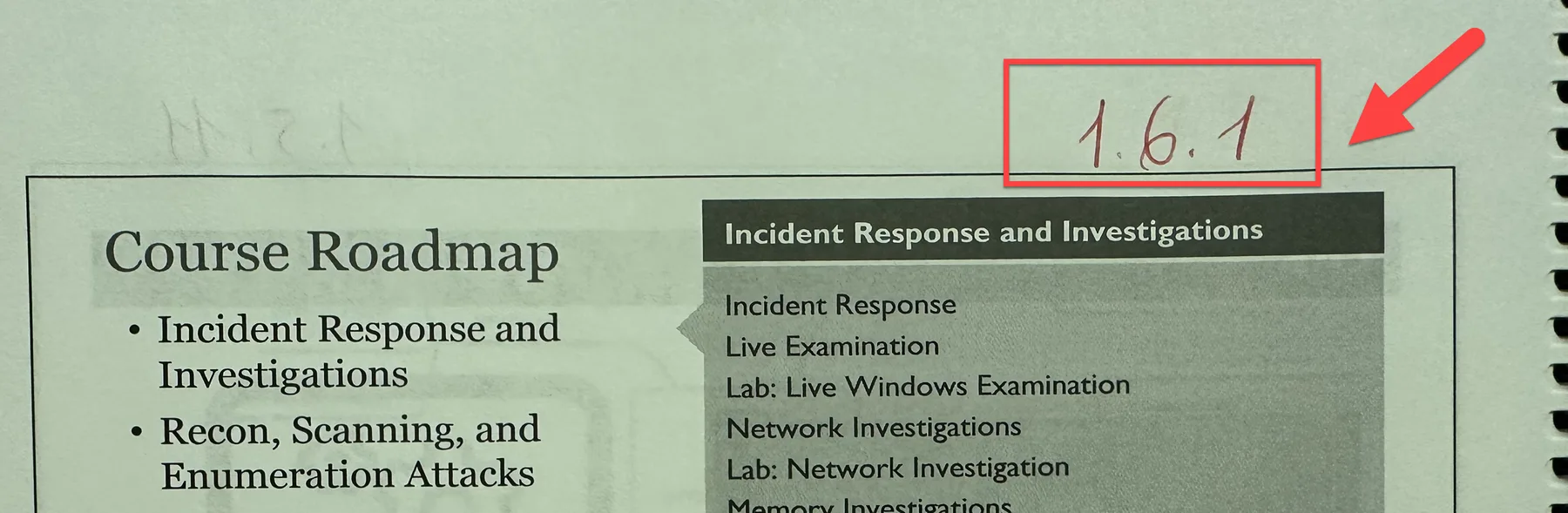
Step 1 - Number the Chapters (Chapter Sectioning)
The initial step I took was to subdivide the sections or assign numbers to the chapters. Additionally, I made notes within the book, utilizing the available blank spaces on most pages to summarize topics in my own words.
Step 2 - Create an Excel File
This step is foundational and highly significant. The approach may vary for each individual, but this method yielded the best results for me.
| Section Title | Section # | Page # | Keyword |
|---|---|---|---|
| Incident Response | 1.2.3 | 18 | PICERL = Incident Response Model |
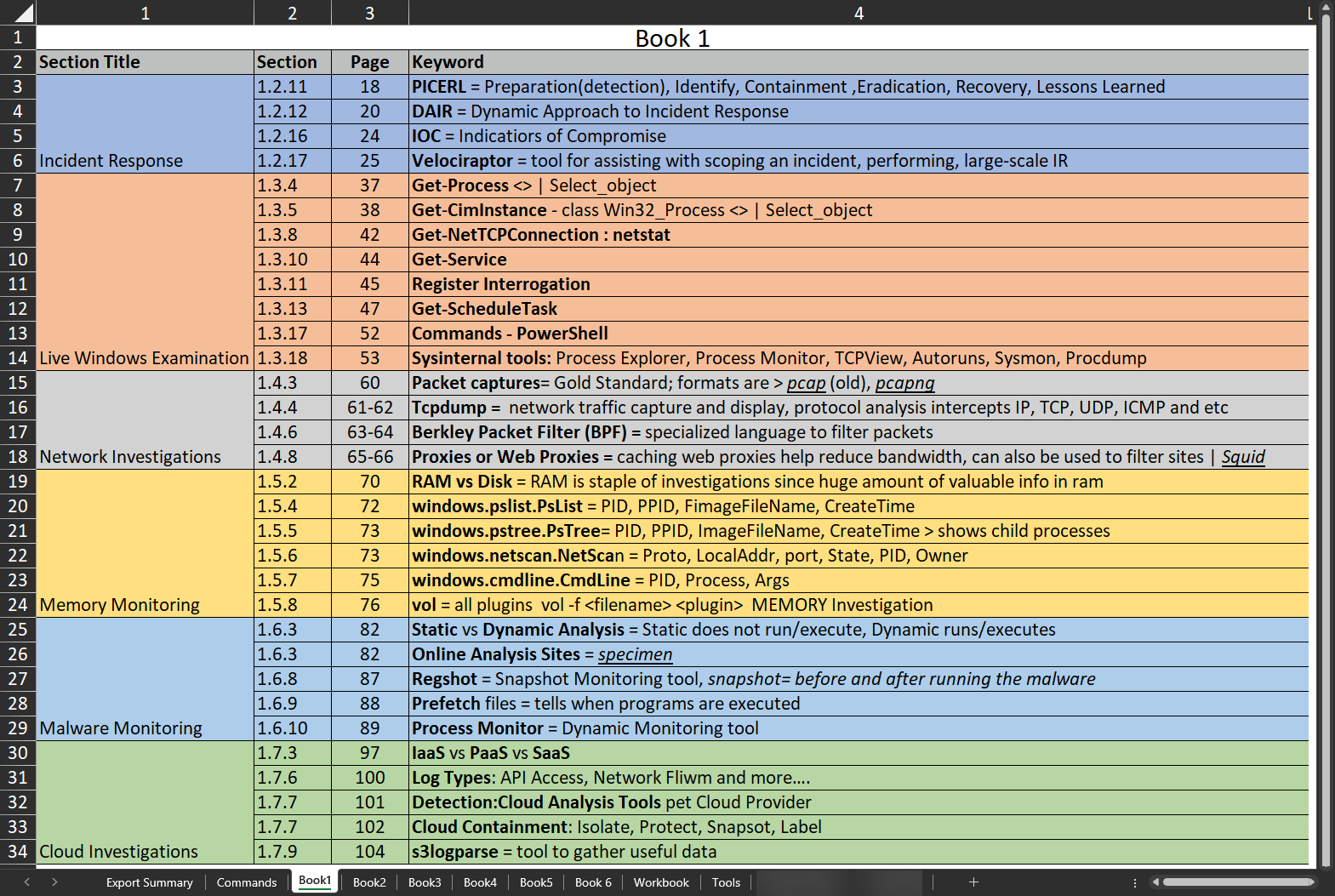
We will later sort this by Alphabets, but right now, do not worry about it, and take as many notes as you can since you do not know where the questions can come from.
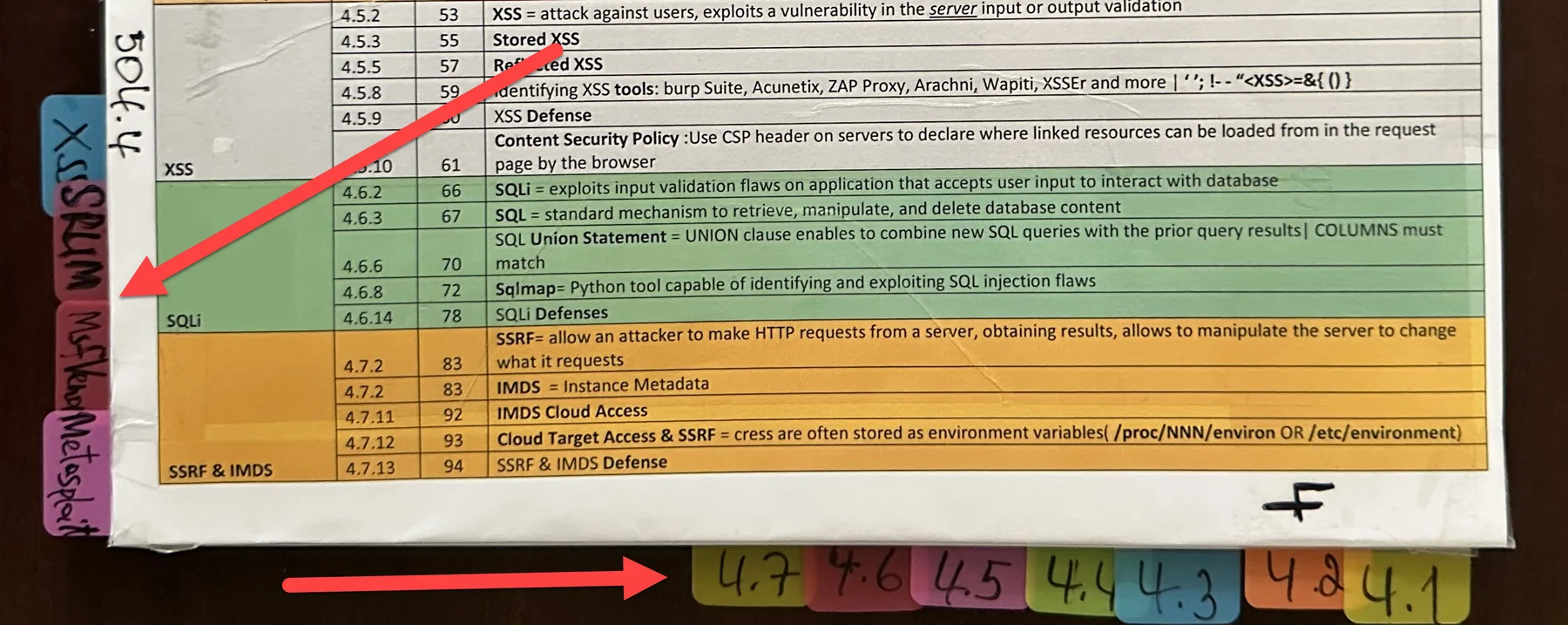
Step 3 - Label the Sections & Important Topics
Note: This is for fast searching the notes you’ve taken in Step 2.
I did this once I was done with each book, but you can do them however you like. I would basically label each chapter/section, and NOT the subsection. Additionally, I also labeled important topics that were covered throughout the chapters (only big ones since you already have your notes).
Step 4 - Sort Alphabetically
After you’re done with all the books, it is time to sort your notes Alphabetically because trust me, that is the fastest way of finding what you need, but I’ll also explain why I included “Section Title” column from Step 2.
- Copy the contents of your excel file, without the Section Title column
- Create a new excel file or open a new tab
- Paste your notes from all the books

- Open a new Word file
- Paste everything
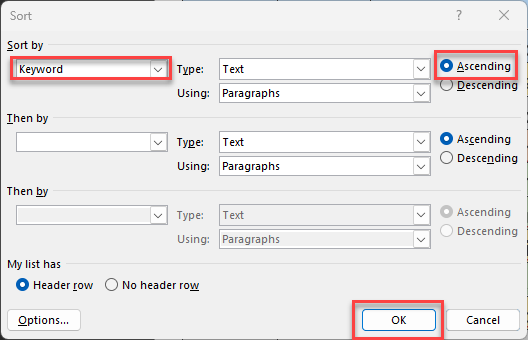
- Click on the table > go to “Layout” Tab > click on AZ Sort > Sort by “Keyword” column > click on “Ascending”
- Save the file
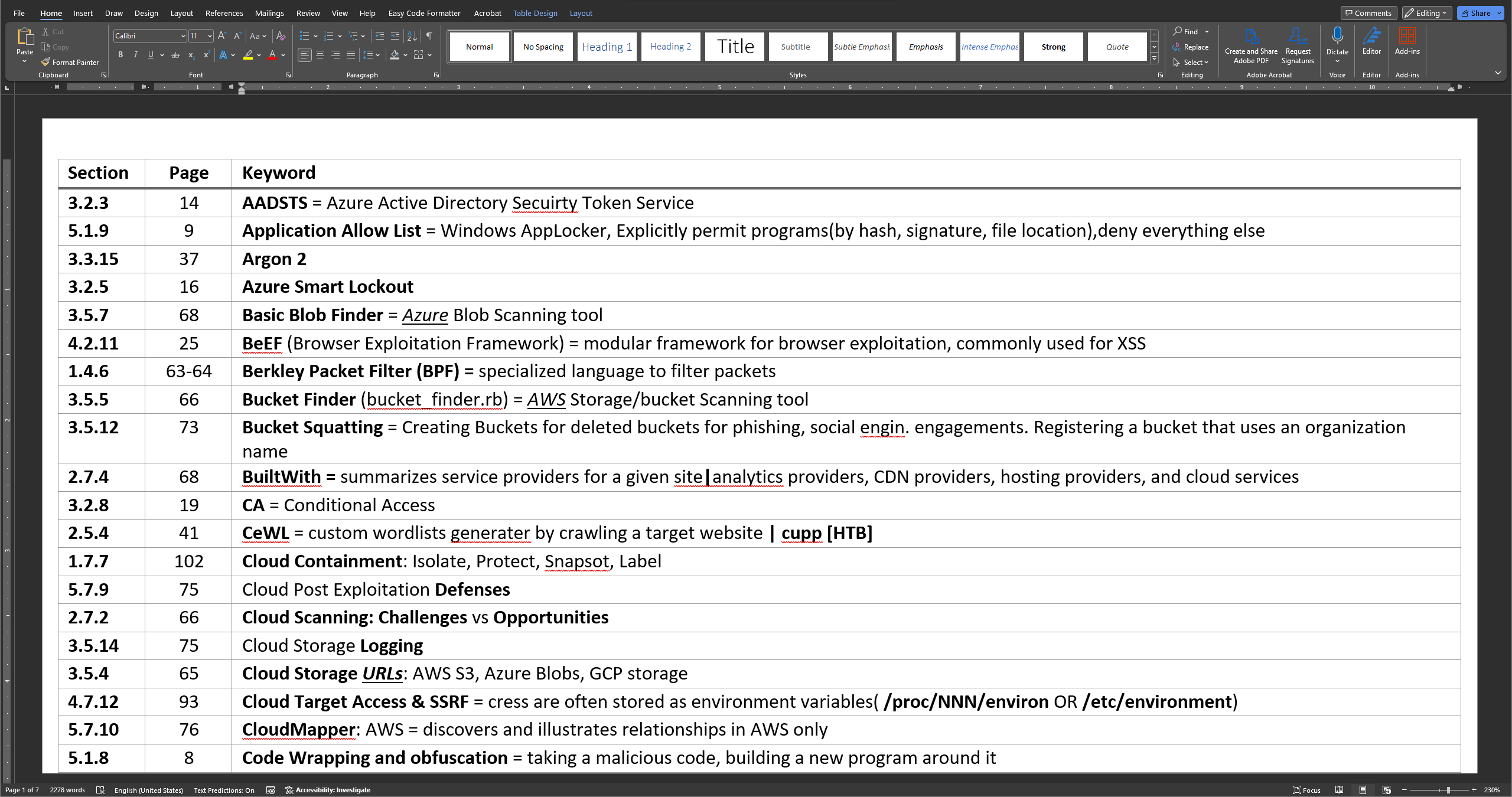
Step 5 - Print everything
There are 2 parts to this, where you will print the contents of your original Excel file with “Section Title” column, as well as your Word file (without the “Section Title” column), where your notes should be sorted Alphabetically.
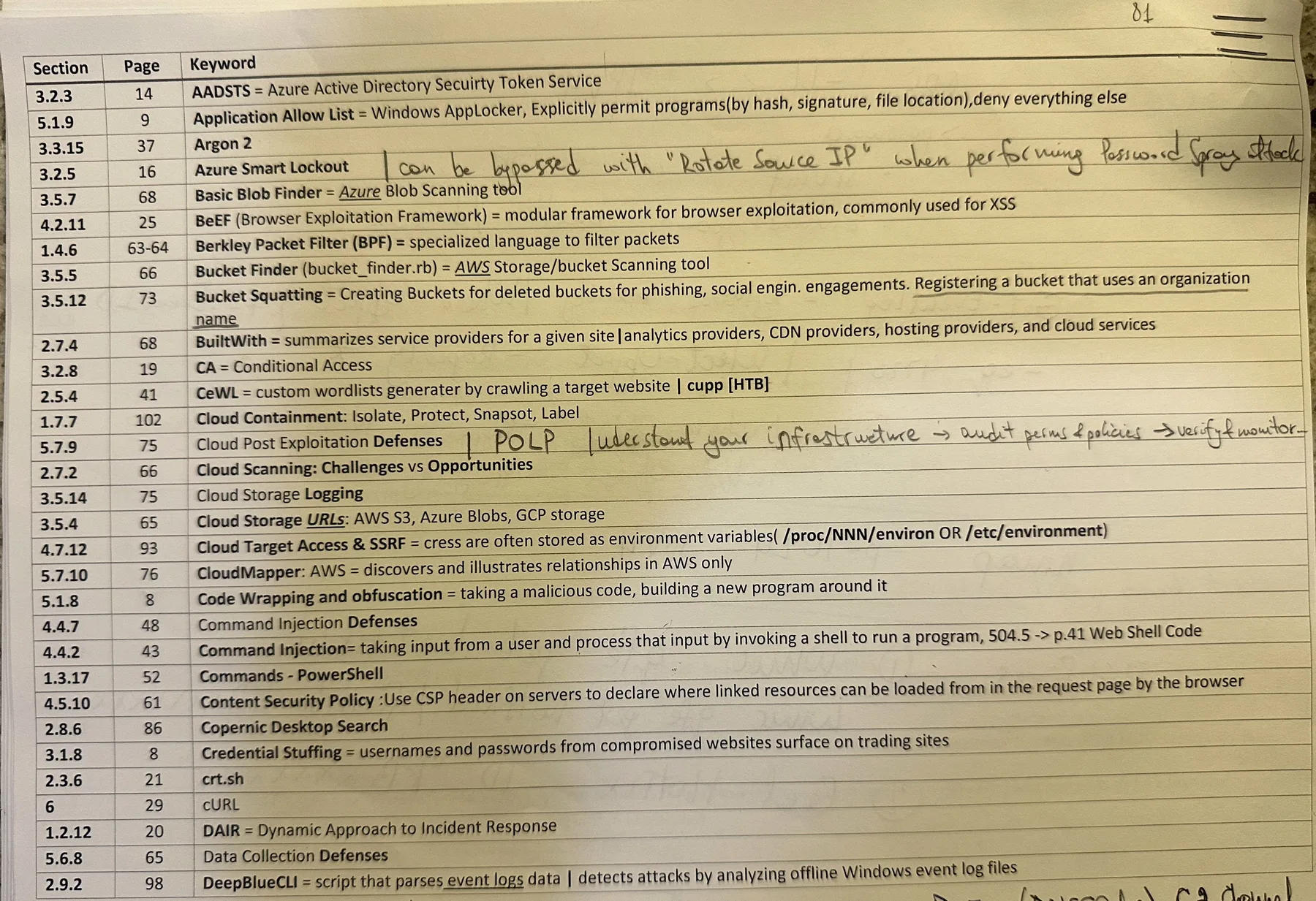
Now, you might be asking, if I print the Word file, why would I need to print the Excel file?!
Well, the reason I have the “Section Title” column is that it really helps a lot when, for example, there is a question about Cloud Platforms, and you do not have any notes taken related to that question. In that specific case, “Section Title” will save you since now you know the question is related to “Cloud,” and you can look at your “Section Titles” that are named *Cloud*, and know which chapter/section might help you to answer the question. Trust me, there are going to be questions where you would have no notes taken about it.
Step 6 - Attach the Excel file Notes to your book
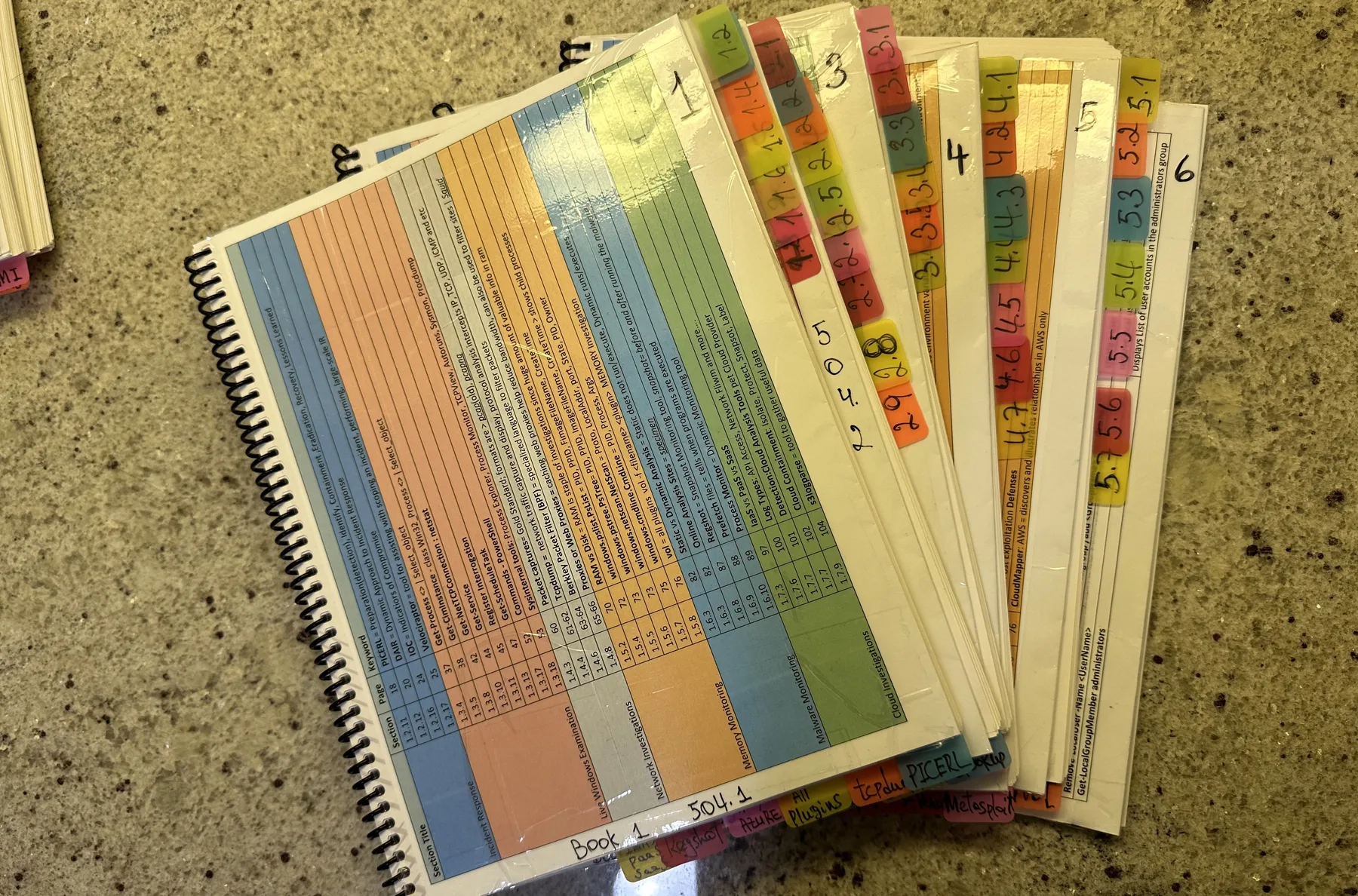
After I print everything from Step 5, I attached the Excel file notes to my books and keep the Sorted Notes separately.
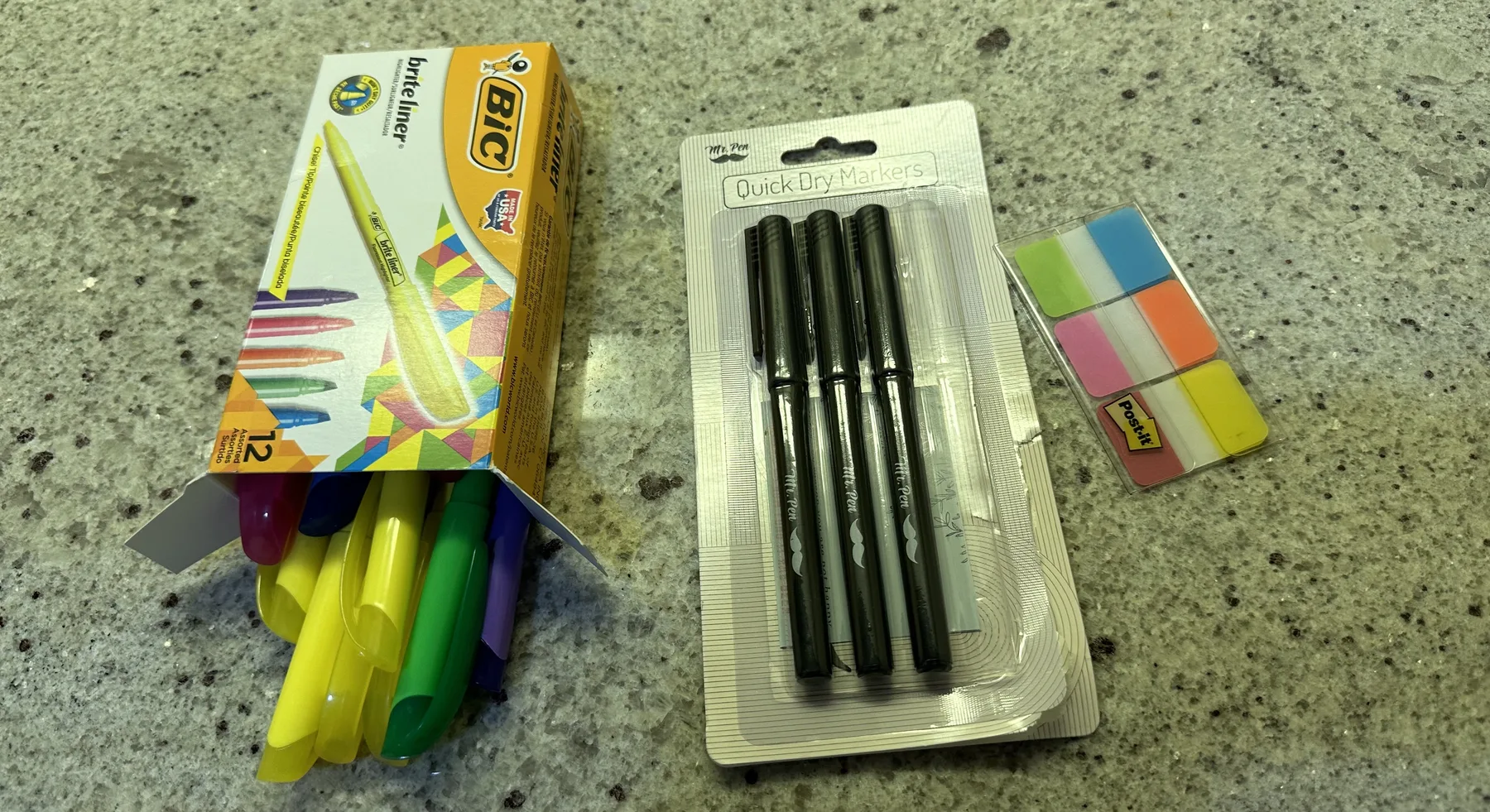
Products that I use to get the job done:
In conclusion, indexing your GIAC exam books can significantly help in your preparation. Follow these steps to create an organized and accessible reference that can assist you during the exam. Remember, each step is crucial, and personalizing the process might enhance its effectiveness based on your studying style.